To install a scanner you can do it two different ways. The first way you can use the scanner is by 'plug and play'. You simply plug in the USB cable into your computer and use the scanner, This way is ok, however you don't get to benefit all the features that come with the scanner. The other way is by installing the scanner onto your programme. For this you need to insert the disk into your computer and it should automatically come up on your screen. The you should install the disk onto your computer. If the scanner requires other disks to be installed onto your computer, then your computer should prompt you for this at this time. Once you have installed the disk(s) onto your computer, then you should plug your USB cable into your computer and the scanner and then you can use the scanner with all the benefits that come with it. With configuring a scanner, this is usually not needed. So i will say how to configure a printer instead. To configure a printer, you are changing the default settings to suit want you want the printer to do. S0 you could change it to print from black and white everytime to colour everytime.
The difference between a peripheral and a component is that one is needed and the other is an accessory/not needed.
A component is part of the computer and is usually needed. For example, the cpu is a component of the computer and is needed in order for the computer to work correctly. However a peripheral is an accessory and is not necessarily required. For example a scanner is not needed for the computer to work however it could be included to make the computer have more features and functions.
Wednesday, 2 December 2009

Firewalls
The firewall is the part of the computer system or network which is designed to block any unauthorized access whilst permitting authorized communications. The firewall is a device which is configured to deny, permit, proxy, encrypt, decrpyt all computer traffic (in or out of the computer) which is between any different security domains. The firewall can be impletemented in either hardware or software or even both. The firewall is most commonly used to prevent unauthorized users accessing private networks which are connected to the internet. Every message that is passed into and out of the computer are passed through the computer and are examined thoroughly to check that they meet the specified security criteria. There are many different types of firewall techniques including: Packet filter and a Proxy server. A Packet filter inspects each packet passing through the network and can either accept or reject it based on user defined rules. It is effective and most transparent to its users. However it is harder to configure. The proxy server intercepts all messages entering and leaving the network. The proxy server effectively hides the network addresses.
SFC command
SFC command is shorthand for system file ckecker command. This can be used to verify and replace important Windows system files. The system file checker command is useful to use when you suspect that there are issues with protected Windows files, such as, DLL files. DLL files is shorthand for Dynamic Link Library. This is a type of file which contains instructions that other programs can get to do certain things.
CHKDSK
Chkdsk is shorthand for CheckDisk. Chkdsk is a command for computers which run DOS, OS/2 and Microsoft Windows and displays the file system integrity status of the hard disks and floppy disks. It can also fix any logical file system errors.
Friday, 27 November 2009
Safe mode
Safe mode on the computer simply disables all the features/software on the computer to the ones that the computer can rely on. It is advisable to put the cmoputer into safe mode if you are trying to find out what the fault is on the computer if you have one. It is also advisable to put the computer into safe mode if you are having trouble booting up the computer, or if you cannot boot up the computer. This is because...
Scheduling set times for maintenance
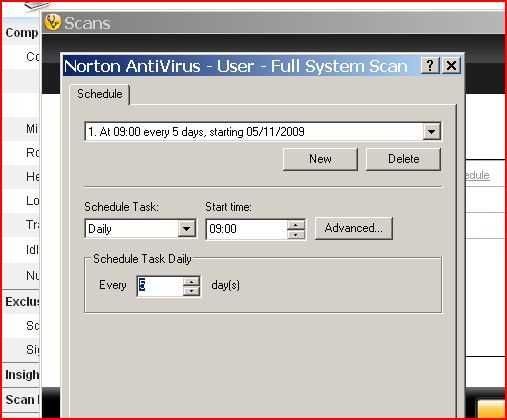
This picture shows the taskbar used to schedule set times to perform routine scans on whatever you chose it to scan. You can create a routine time of your choice, where you can change the time, whether you do it every day, each week, each month, and each year, or on a routine of your choice. If you have to carry out a lot of tasks, the you should use software that reminds you when you need to carry out certain tasks. Software such as Microsoft Outlook, which offers a feature which offers you to set up a task and reminders at certain times that suit you. You can also schedule it to do these tasks automatically. This is advisablefor making essential tasks such as backups. The details of the task can also be set just once, instead of every time you want to do a backup.
Hardware maintenance


Things that should be done on a weekly basis are:
- Clean mouse (ball and rollers) checking for wear.
- Clean keyboard, checking for stuck keys.
- Clean monitor screen.
- Clean printer.
Tasks that should be carried out on a monthly basis are:
- Clean outside of case
Tasks carried out annually are:
- Check motherboard.
- Clean adapter cards.
The tasks that are listed above are all tasks that need to be carried out to keep the hardware clean and safe to use. If the hardware components are not cleaned when they need to be cleaned, this may cause things like dust collecting on the components and damaging them. To clean them, use cleaning equipment such as a soft lint-free brush. This can be used for cleaning glass and plastic surfaces on the components. Also using paper towels if any spillages occur, cotton buds for cleaning the mouse etc, a non-static brush for the more stubborn dirt and compressed air for cleaning fans, keyboards etc. When cleaning the hardware, you must take in consideration of the Health and Safety regulations. Making sure you use an anti-static wristbands and using anti-static mats. Other things you must take into consideration when cleaning the computer components is that the computer is switched of at the wall and that you are careful with sharp edges that may be on the components. Below is a picture of a CPU fan that hasn't been cleaned. This is wrong as the dirt and dust collects on the fan and eventually the fan will stop working and the computer will over-heat.
Subscribe to:
Posts (Atom)